Changing the View Orientation Using the View Navigator
The View Navigator is a user-friendly tool for changing the view orientation of a model.
- Switch between standard and isometric views of your model
- Control whether the isometric views are relative to the WCS or active CCS
- Set the projection mode
- Define a default view (Home View)
Switching between Standard and Isometric Views of Your Model
The View Navigator provides a set of predefined view orientations for quickly changing the view of the model.
- The Inner Ring lets you set top and bottom views.
- The Outer Ring provides a set of eight sectors for quickly switch between standard and isometric views of your model. Each sector of the Outer Ring corresponds to a view. When you click on a sector, the software moves the scene to the corresponding view.
Changing the View Projection Mode
The View Navigator provides two view projection modes:
- Parallel. A parallel projection is a projection in which projection lines are parallel to each other. Parallel projection provides an accurate view of an entity.
- Perspective. A perspective projection depends on the relative position of the view plane. Perspective projection does not preserve the size of the entity and therefore, gives a more realistic representation. The longer the distance, the smaller the entities.
To change the view projection mode:
- Display the View Navigator.
- Hover over the View Navigator, click
 and select one of the following options:
- Parallel.
- Perspective.
Using the Home View
The Home view is a special view of the model that you can store and apply it later, whenever it is necessary.
Using the View Navigator, you can define any view of the model as the Home view. Later, you can apply the saved view at any time.
To define the Home view:
- In the graphics area, set up a suitable 2D or 3D view. Use the Views command.
- Hover over the View Navigator, click and select Set Current View as Home from the menu.
To return to the Home view:
- Do one of the following:
- Hover over the View Navigator and click
 .
. - Hover over the View Navigator, click and select Home from the menu.
- Hover over the View Navigator and click
Changing the View Orientation According to the Active CCS
Using the View Navigator, you can change the view orientation within the active CCS or WCS.
To change the view orientation according to the CCS:
- In the graphics area, set up a suitable CCS.
- Hover over the View Navigator, click and select View Navigator Properties from the menu.
- In the View Navigator Properties dialog box, select Use active CCS.
Example:
WCS
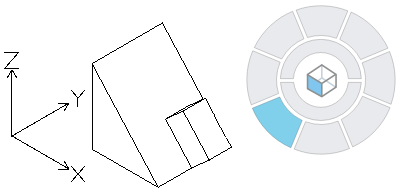
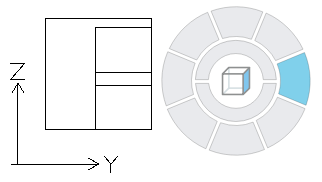
CCS
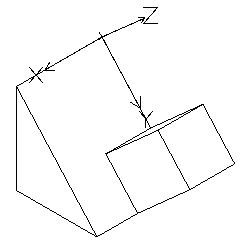
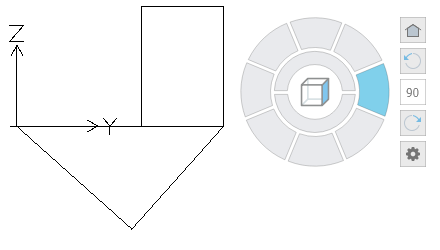
 To control CCSs, use the CCS and CSStyle commands.