Editing Splines
After you create a Spline, you can change its shape using various methods:
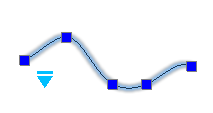
- Use grip points to move, add, or delete control vertices and fit points. Additionally, you can change the tangent direction of the spline at its end points.
 The triangular grip point lets you switch between control vertices and fit points.
Control vertices Fit points 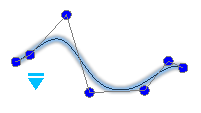
- Use the EditSpline command to edit Splines.
You can:
- Close open Splines
- Join Splines with other 2D entities
- Convert Splines to Polylines
- Edit fit point data and control frame data
- Edit properties and parameters of Splines
Note: The Properties palette groups several options for modifying Splines.
To edit Splines:
- Do one of the following:
- On the ribbon, click Home > Modify > Edit Spline.
- On the menu, click Modify > Entity > Spline.
- Type EditSpline.
- In the graphics area, specify a Spline.
- Specify an option:
- Close. Closes open Splines.
This option displays only if the Spline is open. A closed Spline forms a loop.
- Fit data. Edits fit point data.
- Edit vertex. Edits control frame data.
See Editing Control Frame Data of Splines (Control Vertex Editing).
- Join. Connects a specified Spline with a line, arc, Polyline, elliptical arc, or other Spline at a coincident endpoint to form an extended Spline.
Specify the connected entity to combine it with the specified Spline.
This option is not available if you specified a closed Spline.
- Polyline. Turns the Spline into a Polyline using the vertices as control points.
Specify the precision value that determines how closely the resulting Polyline matches the Spline. Valid values are any integer between 0 and 99. The default value is 9.
- Reverse. Reverses the direction of the Spline.
This option is mainly intended for application developers.
- Undo. Undoes the most recent operation without terminating the command.
- Exit. Ends the command.
- Close. Closes open Splines.
- Repeat step 3 as needed, or press Enter to end the command.
Editing Fit Point Data of Splines (Fit Point Editing)
The Fit data option of the EditSpline command lets you apply the following options:
- Add. Adds fit points to the specified Spline.
- Close. Closes open Splines.
This option displays only if the Spline is open.
- Delete. Removes specified fit points.
- Kink. Adds knots and fit points at specified locations.
Note: The Spline does not maintain tangent or curvature continuity at the specified location.
- Move. Moves specified fit points to new locations. Specify a new fit point or specify options:
- Next. Proceeds to the next fit point and makes it active.
- Previous. Returns to the previous fit point and makes it active.
- Specify point. Lets you specify a fit point and makes it active.
Temporarily disable the EntitySnap modes to prevent them from snapping to the end points of the Spline instead of the fit points.
- Exit. Exits the Move mode.
- Purge. Removes the fit points from the Spline and creates control vertices instead.
- Tangents. Lets you specify the Start Tangency and the End Tangencyof the Spline.
These point specifications determine the tangent conditions on the start point and on the endpoint of the Spline. Lines that are tangent to the Spline display dynamically from the start point and the endpoint of the Spline.
In some situations it is useful to apply the EntitySnaps Parallel and Perpendicular to specify the tangent direction.
Confirm System default to let the application calculate the default end tangents.
- Tolerance. Adjusts the Spline to the existing fit points using a new tolerance value.
- Exit. Return to the main prompt level.
Editing Control Frame Data of Splines (Control Vertex Editing)
Use the Edit vertex option of the EditSpline command to add and remove control vertices and modify the control frames parameters of Splines:
- Add. Adds a new control vertex at the point you specify that is located between two existing control vertices.
- Delete. Removes a specified control vertex.
- Elevate order. Increases the polynomial order (degree plus one) of the Spline. This option creates a higher number of control vertices across the Spline. The maximum value is 26.
- Move. Relocates specified control vertices. Specify a new vertex locations or specify options:
- Next. Proceeds to the next vertex and makes it active.
- Previous. Returns to the previous vertex and makes it active.
- Specify point. Lets you specify a control vertex and makes it active.
Temporarily disable the EntitySnap modes to prevent them from snapping to the end points of the Spline instead of the vertices.
- Exit. Exits the Move mode.
- Weight. Lets you change the weight of a specified control vertex.
The Spline is recalculated based on the new weight value for the specified control vertex. A larger value will move the Spline closer to the control vertex.
- Exit.Return to the main prompt level.
Note: You can use the Spline option of the EditPolyline command to apply a cubic spline type to a 2D Polyline.
Access
Command: EditSpline
Menu: Modify > Entity > Spline
Ribbon: Home > Modify > (Flyout) Edit Spline 
Tool Palettes: Modify > Spline Edit