About Value Tables
A value table associates a list of CustomBlock properties and their corresponding values to a description. The properties define the column headings and each row defines a value state.
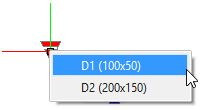
In the Block reference, you can display the list of available descriptions by clicking the table grip point. Selecting a description automatically changes the Block reference to the corresponding values defined by the rows in the value table.
Associating a table activity to a table element creates an empty value table. You need to add the required properties to the table and specify the values in each cell.
You can click a cell and type a value. If you specified a value set for an element, then you can select the value from a drop-down list.
To display the value table associated to a table activity, use the CBValueTable command.
There are two types of properties:
- Input properties: CustomBlock elements, other than table elements.
- Table properties: Table elements.
The value table uses the element label as column title and property
Example:
Considering a CustomBlock defined for representing desks of various lengths and widths, instead of stretching using a grip point, you can select the values from a list of specific sizes. A value table defines the list of values using Length and Width columns.
| Length | Width | Table 1 States |
|---|---|---|
| 100 | 50 | D1 (100 x 50) |
| 200 | 150 | D2 (200 x 150) |
Selecting the corresponding table element grip point in the Block reference displays the list of available descriptions (states). To change the size of the Block reference, select an option from the list. The Properties palette displays the corresponding values for Length and Width (Custom category). The grip point for the stretch activity is not required in this case.