Modifying Dimension Text Using the Dimension Palette
The Dimension palette appears when you insert or select a Dimension so you can change the properties and formatting of Dimension text.
You can change the tolerance, precision, and formatting in the palette without going to the Properties palette.
The palette is beneficial for reusing format settings for other Dimensions (for example, reference dimensions, or tolerances).
If you select more than one Dimension, the properties and formatting that you specify in the palette apply to all of the Dimensions.
The palette applies to linear, angular, radial, diameter, arc length, and ordinate Dimensions.
To display the Dimension palette:
- In the graphics area, insert or select a Dimension.
The Dimension palette tool
 appears to the upper right of the pointer.
 - Move the pointer over the tool to display the Dimension palette.
- Click anywhere in the palette to pin it.
The palette disappears if you move the pointer beyond the graphics area or clear the Dimension selection by another means.
 Note: The Dimension palette is a context toolbar that you can turn off (See Dimension Palette Options).
Dimension Palette Overview
The Dimension palette has three areas:
- The buttons at the top let you change the properties and formatting of Dimension text and Tolerances.

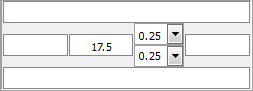
- The text boxes in the middle of the Dimension palette let you add text to the left, right, top, and bottom of the Dimension text. The Dimension text is located in the center of this area, and you can override it.
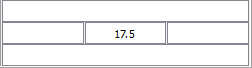
Additional text boxes are inserted behind the Dimension text box, if you apply a tolerance type (Symmetrical, Deviation, or Limits).
If you specify more than one Dimension, the Dimension text and Tolerances boxes may display "<varies>".
- The buttons at the bottom let you manage favorites for the appearance and formatting of Dimension text and Tolerances for subsequent use.

Dimension Text and Tolerance Properties and Formatting
| Option | Button | Description |
|---|---|---|
| Tolerance Display |  |
Specifies a tolerance format (Symmetrical, Deviation, Limits, Basic, or None). See Tolerance Formats. Selections available depend on the type of Dimension. |
| Unit Precision |  |
Sets the precision of the Dimension value from 0 to 8 decimal places. |
| Tolerance Precision |  |
Sets the number of decimal places for Tolerances (only available if Tolerance Display is set to Symmetrical or Deviation). |
| Add Parentheses |  |
Puts parentheses around Dimension text. Reference dimensions are shown in parentheses. |
| Center Dimension Text |  |
Centers the Dimension text between the extension lines. This option is similar to the EditDimension command with the Home option, which undoes the move of Dimension text and returns it to its original position. |
| Offset Dimension Text |  |
Determines the behavior of Dimension text movement: if cleared, the Dimension line location follows Dimension text movement; if selected, a leader connects the moved Dimension to the Dimension line which remains in its position. |
| Text Justification |  |
Establishes horizontal and vertical justification of the Dimension text. |
Tolerance Formats
Tolerance formats include:
- Symmetrical. Appends a plus/minus tolerance value to the Dimension measurement which indicates the positive and negative deviation in a single value.
- Deviation. Appends separate plus and minus values of deviation to the Dimension measurement.
- Limits. Displays a maximum and a minimum value, one on top of the other.
- Basic. Displays the additional Dimension measurement and deviation in a single value with a box around it.
- None. Does not generate a tolerance value.
Dimension Text Favorites Management
For repeated formatting of Dimension text, use Dimension text favorites.
You can save favorites in the drawing or in files of type *.dimfvt.
| Option | Button | Description |
|---|---|---|
| Apply Default |  |
Returns the selected Dimension(s) to their original state. The DimensionStyle associated with the Dimension entity applies to the entity in its entirety. |
| Save Favorite |  |
Adds or updates a favorite that is stored in the drawing. In the dialog box, specify a name or select an existing one. |
| Delete Favorite |  |
Deletes a favorite that is stored in the drawing. In the dialog box, specify the name of the favorite to delete. |
| Export Favorite |  |
Saves a favorite to a file of type *.dimfvt. Note that you must apply a named favorite in the drawing before you can save it to file. |
| Import Favorite |  |
Loads a favorite from a file of type *.dimfvt. If a favorite with the same name exists in the drawing, the favorite in the drawing and all associated Dimensions are updated by the settings of the favorite file. |
| Favorites List |  |
Shows a list of recently applied Dimension text and Tolerance settings and of recently saved favorites. For each item, a tooltip displays the Dimension value parameters. |
| Help |  |
Displays this help topic. |
Dimension Palette Options
You can turn on and off the use of the Dimension palette and set the path for Dimension text favorite files.
To set Dimension palette options:
- Type DraftingOptions at the command prompt.
In the Options dialog box, the User Preferences page opens and Drafting Options expands.
- Expand Dimension Palette.
- Click Enable Dimension palette to turn on or off the Dimension palette.
- In Favorites library path, set the path for Dimension text favorites files (*.dimfvt files). Click Browse to browse for the Dimension text favorites file folder.
- Click OK.
Parent Topic